Quick 3-Minute Setup Blueprint (Bottom Line Up Front)
To convert any DirectInput gamepad (generic USB, PS3/PS4, arcade stick, or steering wheel) into an Xbox 360 controller on Windows 11 or 10, execute four core steps:
- Install Prerequisites: Install the ViGEmBus Driver (virtual emulation bus) and .NET 7.0 Desktop Runtime (x64) before running XOutput.
- Launch & Add: Plug in your controller, extract XOutput v3.32, launch
XOutput.exe, and click Add controller. - Configure Mapping: Click Edit next to the controller, click Configure All (or manually map Left Stick, D-Pad, Triggers, and Buttons), and hit Save.
- Start Emulation: Click Start. Windows immediately registers an official virtual Xbox 360 controller in
joy.cpl, recognized across Steam, Game Pass, and EA App.
Legacy DirectInput controllers and generic USB pads are frequently ignored by modern PC titles designed exclusively for Microsoft XInput. XOutput solves this compatibility gap at the kernel driver level: it intercepts your raw DirectInput hardware signals, translates them in real time, and feeds them into the ViGEmBus driver to spawn an authentic virtual Xbox 360 controller.
Unlike older injectors such as x360ce that require pasting DLL files into individual game folders, XOutput operates as a global system-wide virtual gamepad. In this comprehensive walkthrough, you will set up clean controller mapping, tune analog stick deadzones to prevent drift, and eliminate double-input conflicts in modern games.
Step 1 — Download Verified Software and Required System Drivers
XOutput relies on two foundational system components to emulate virtual Xbox 360 hardware. Originally created as an open-source project by csutorasa on GitHub, it relies on the kernel-mode bus driver maintained by Nefarius on GitHub to interface directly with the Windows driver stack. Installing these prerequisites in the proper order prevents common setup bottlenecks such as instant launch crashes or a greyed-out Start button.
1. XOutput Application (v3.32)
The core translation interface created by csutorasa. Portable zip executable; no installer required.
2. ViGEmBus Driver (v1.22.0)
Mandatory virtual bus driver by Nefarius. Spawns the virtual Xbox 360 hardware in Windows.
3. Microsoft .NET 7.0 Runtime
Required framework dependency. Download the .NET Desktop Runtime (x64) from Microsoft.
ViGEmBusSetup_x64.msi and the .NET Desktop Runtime before extracting and launching XOutput. If XOutput is launched before the ViGEm service is running in Windows, the “Start” button will remain greyed out.
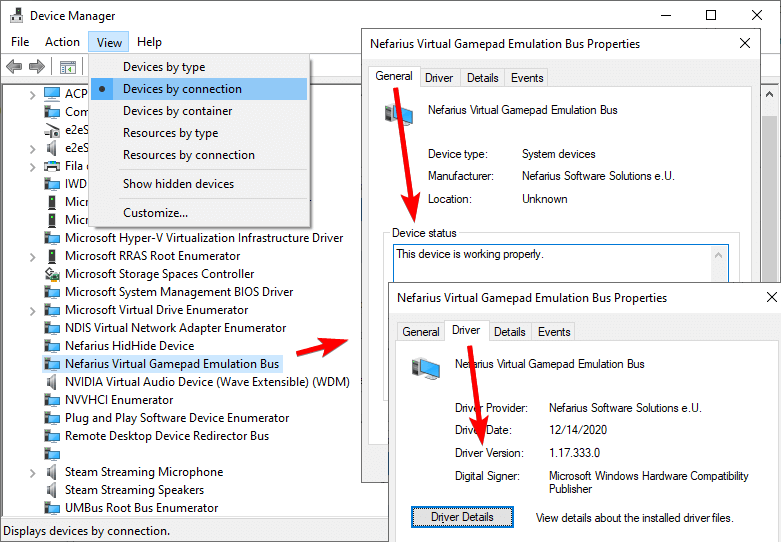
To verify that ViGEmBus has properly registered with your Windows kernel, open Device Manager (press Windows Key + R, type devmgmt.msc, and hit Enter). Expand the System devices branch and locate Virtual Gamepad Emulation Bus. If it displays with no yellow exclamation warning icons, your driver subsystem is operating normally.
Step 2 — Connect Gamepad and Verify Initial Windows Recognition
Before configuring emulation, confirm that your physical controller is detected by the Windows DirectInput subsystem:
- Connect your gamepad to your PC via a direct USB port (avoid unpowered USB hubs during initial configuration to ensure sufficient bus power).
- Press
Windows Key + R, typejoy.cpl, and press Enter to open the native Game Controllers window. - Verify that your physical controller appears in the list (typically labeled as “Generic USB Joystick”, “Twin USB Gamepad”, “PS3/PC Gamepad”, or the manufacturer name).
- Select your controller and click Properties. Move the analog sticks and press each button to verify that the raw input lights illuminate in the test matrix.
If your gamepad does not show up in joy.cpl, Windows has not recognized the physical connection or missing a hardware vendor driver. Once verified in joy.cpl, extract your XOutput zip archive into a dedicated folder (e.g., C:\Tools\XOutput\) and launch XOutput.exe as Administrator.
Step 3 — Create and Map Your Virtual Xbox 360 Controller
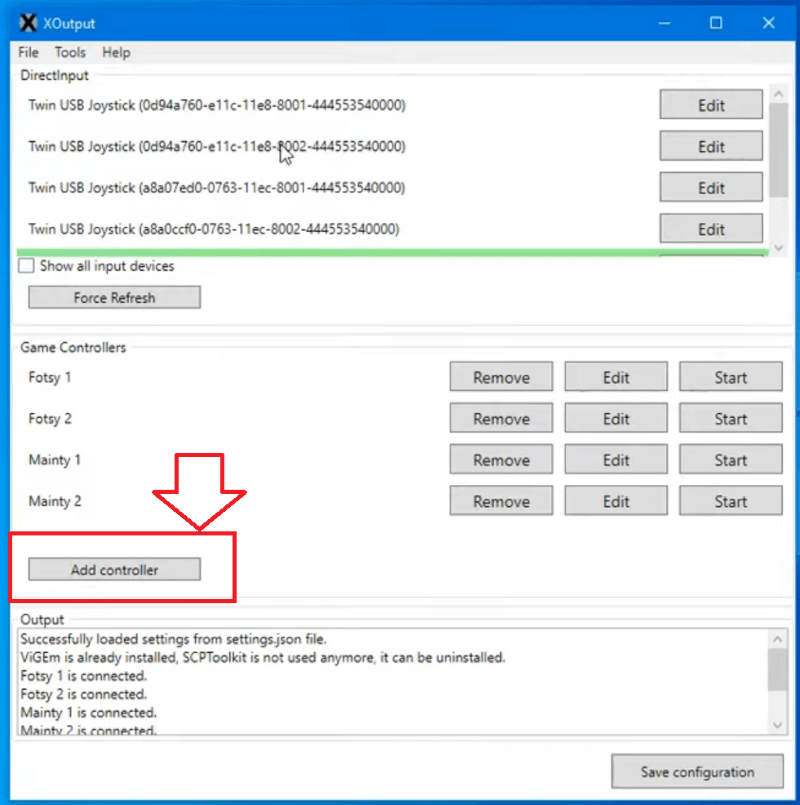
When XOutput launches, your physical hardware will be listed under the Game Controllers tab. Follow these steps to map each control to its Xbox 360 counterpart:
- Click the Add controller button. A new entry labeled Controller 1 will appear with an Edit button.
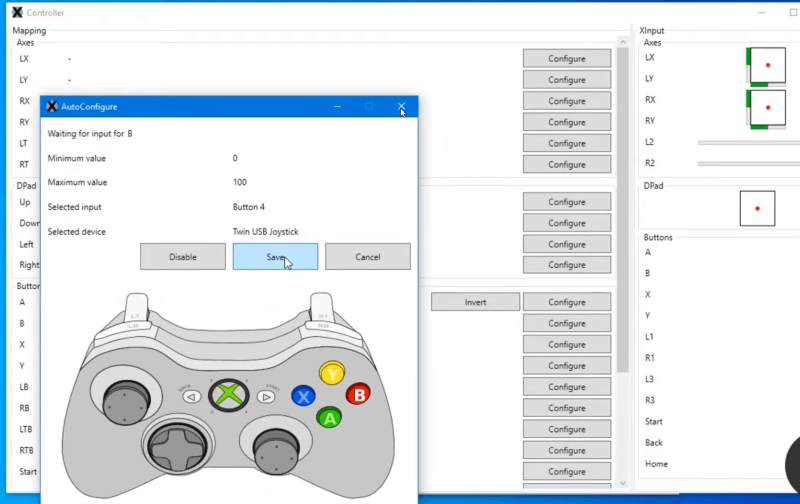
- Click Edit next to Controller 1. This opens the mapping matrix window where you pair DirectInput signals to the standard Xbox 360 layout.
- Click Configure All to start the automated sequential mapping wizard, or click Configure next to individual buttons.
- When prompted on screen, press the physical button or tilt the analog stick in the indicated direction.
DirectInput to Xbox 360 Target Input Translation Reference
Use this standardized reference table if you are manually mapping buttons or configuring non-standard controllers:
| Xbox 360 Target | DirectInput Signal | PS3 / PS4 Equivalent | Recommended Mapping Method |
|---|---|---|---|
| Left Stick (X / Y) | Axis 1 & Axis 2 | Left Analog Stick | Push stick fully Left/Right, Up/Down |
| Right Stick (X / Y) | Axis 3, 4, 5, or 6 | Right Analog Stick | Push stick fully Left/Right, Up/Down |
| D-Pad (Up, Down, Left, Right) | POV 1 or Buttons 13-16 | Directional Pad | Press each direction cleanly once |
| Face Buttons (A, B, X, Y) | Buttons 1, 2, 3, 4 | Cross, Circle, Square, Triangle | Match layout positions (A=Cross, B=Circle) |
| Bumpers (LB, RB) | Buttons 5, 6 | L1, R1 | Press upper shoulder buttons |
| Triggers (LT, RT) | Axis or Buttons 7, 8 | L2, R2 | Pull analog triggers fully to 100% |
| Stick Clicks (L3, R3) | Buttons 9, 10 / 11, 12 | L3, R3 | Press down into analog stick centres |
| Start & Back (View/Menu) | Buttons 9, 10 | Options / Share / Select | Press middle function buttons |
Step 4 — Calibrate Analog Sticks and Tune Deadzones to Eliminate Drift
Generic controllers and worn potentiometer joysticks frequently suffer from input drift or uncentered resting values. Left uncalibrated, this causes unintended character creeping, spinning third-person cameras, or erratic menu scrolling.
XOutput provides real-time per-axis deadzone compensation directly in the mapping window:
- Calibrate Rest Position: In the mapping configuration window, observe the live visual position of your analog sticks while your hands are off the controller. The indicator should rest precisely at
0.00. - Set Deadzone Percentage: Under each analog axis, adjust the Deadzone slider:
- 5% to 8% (Recommended for most controllers): Eliminates micro-jitters without sacrificing fine aim precision in shooters or steering granularity in racing games.
- 10% to 15% (For loose or worn sticks): Necessary for older controllers where sticks do not reliably return to center.
- Invert Axes if Necessary: If pushing forward makes your in-game character move backward or look at the floor, check the Invert checkbox on the Y-Axis.
- Click Save at the bottom of the window to store your calibration profile.
- For an in-depth tutorial on diagnosing joystick circularity, deadzone curves, and persistent drift issues across Steam and Windows, check out our comprehensive Stick Drift Calibration & Deadzone Guide.
- If your gamepad requires higher than 15% deadzone just to prevent camera spin, the internal conductive carbon traces on the potentiometers have suffered physical wear. In that scenario, explore our Hall Effect Controller Guide to learn how magnetic sensor gamepads permanently eliminate potentiometer drift.
Step 5 — Start Emulation and Verify in Windows Game Controllers
With your buttons mapped and sticks calibrated, you can activate the virtual controller:
- In the main XOutput dashboard, locate Controller 1 and click the green Start button.
- A Windows notification sound will chime, indicating new hardware has been connected.
- Open
joy.cplagain. You will now see two active devices:- Your original hardware (e.g., “Generic USB Controller”);
- A newly created “Controller (XBOX 360 For Windows)”.
- Select the virtual Xbox 360 controller, click Properties, and test all inputs. When you move your physical stick, the virtual Xbox controller will respond with zero perceptible latency.
Step 6 — Fix Double Input and Ghost Controllers with HidHide
Many modern PC games — notably EA Sports FC (FIFA), Rocket League, Forza Horizon, and Dark Souls — query both DirectInput and XInput APIs simultaneously.
When XOutput is active, these games detect both your original physical gamepad and the virtual Xbox 360 gamepad at the same time. This triggers the infamous “Double Input” bug, where every button press registers twice (e.g., skipping menu items, jumping two steps, or assigning you to Player 2).
The standard, official solution is Nefarius HidHide, an open-source kernel filter driver hosted on GitHub that conceals your physical gamepad from all applications while whitelisting XOutput:
- Download and install the driver following our step-by-step HidHide Double Input Setup Guide, then reboot your computer if prompted.
- Open HidHide Configuration Client from your Start menu.
- Under the Applications tab, click the + button, browse to your XOutput directory, and select
XOutput.exeto add it to the whitelist. - Under the Devices tab, locate your physical DirectInput gamepad, check the box next to it, and check “Enable device hiding” at the bottom.
Now, only XOutput can read your physical hardware. Every game on your PC will only see the clean virtual Xbox 360 controller, permanently solving double inputs.
Troubleshooting Common XOutput Setup Errors and Boundary Cases
If you encounter unexpected behavior during setup, check these verified solutions for common boundary issues:
Common Beginner Setup Mistakes & Quick Fixes
Most setup failures stem from a few common oversights during initial unzipping and driver configuration. Review this quick reference matrix before diving into advanced diagnostics:
| Common Mistake | Observed Symptom | Immediate Fix |
|---|---|---|
| Running XOutput inside ZIP | Settings and mappings fail to save; crash on restart | Extract the full ZIP into a dedicated folder like C:\Tools\XOutput\ before running. |
| Skipping restart after ViGEmBus | “Start” button disabled; driver not detected | Restart your Windows PC so the ViGEmBus kernel driver service can initialize. |
| Installing wrong .NET version | Application crashes immediately with CLR errors | Install the .NET 7.0 Desktop Runtime (x64), not the SDK or standard .NET Core runtime. |
| Mapping triggers as digital buttons | No progressive acceleration in racing games; binary on/off throttle | Map LT and RT to analog axes (Z-Axis / Trigger Axis) rather than discrete digital buttons. |
| Insufficient Windows privileges | Virtual controller fails to spawn in Windows kernel | Right-click XOutput.exe and select Run as administrator. |
| Using legacy ScpToolkit tutorials | Bluetooth bricked; Windows 11 BSOD crashes | ScpToolkit is obsolete. Rely strictly on ViGEmBus 1.22.0 and modern DsHidMini drivers. |
Issue 1 — “Start” Button Is Greyed Out and Unclickable
Root Cause: XOutput cannot establish communication with the ViGEmBus driver. Either the driver is not installed, or the background Windows service (ViGEmBus) has stopped.
Fix: Close XOutput, run ViGEmBusSetup_x64.msi to complete or repair the installation, open services.msc, verify that the Virtual Gamepad Emulation Bus service is running, and restart XOutput. See our dedicated XOutput Not Working Guide for in-depth driver diagnostics.
Issue 2 — XOutput Crashes Instantly Upon Launching
Root Cause: Missing .NET 7.0 Desktop Runtime x64. Windows Event Viewer will report a CLR20r3 or KERNELBASE.dll fault.
Fix: Download and install the official Microsoft .NET 7.0 Desktop Runtime specifically for x64 architectures. Note that the x86 (32-bit) runtime will not resolve the dependency on 64-bit Windows.
Issue 3 — Triggers Act as On/Off Digital Buttons Instead of Analog Axes
Root Cause: Many older DirectInput gamepads (and PS2-to-USB adapters) do not possess true analog pressure potentiometers under L2/R2, transmitting them as simple digital switches.
Fix: In XOutput’s button configuration window, map LT and RT under the Buttons category rather than the Axes category. XOutput will transmit a digital 0% or 100% signal, allowing triggers to operate cleanly in all modern PC games.
Issue 4 — Steam Controller Conflicts and Overlapping Mappings
Root Cause: Steam Input can automatically hook onto both the raw DirectInput controller and the virtual Xbox 360 controller simultaneously.
Fix: Open Steam > Settings > Controller. Under “External Gamepad Settings”, ensure “Enable Steam Input for Xbox controllers” is checked, while disabling generic controller support to allow XOutput full passthrough.
Frequently Asked Questions About XOutput Configuration
Is XOutput safe to download and use on Windows 11?
Yes. XOutput is an open-source, non-commercial software project released under the MIT license by csutorasa. It contains zero telemetry, trackers, or adware. However, only download XOutput from verified official sources like our verified downloads page or the official csutorasa GitHub repository, as third-party fake domains have previously distributed infected clones.
Can I map multiple controllers simultaneously with XOutput?
Yes. XOutput supports up to 4 virtual Xbox 360 controllers simultaneously. Click “Add controller” multiple times in the main interface, configure each physical gamepad to its respective Controller slot (Controller 1 through 4), and click “Start” on each to enjoy local 4-player co-op gaming.
Does XOutput cause bans in anti-cheat games?
No. XOutput functions through the standard ViGEmBus driver, creating a standard hardware-level virtual gamepad in Windows. It does not inject code into game memory, read game processes, or modify executable files. Kernel-level anti-cheats (including Easy Anti-Cheat, BattlEye, and Ricochet) recognize the device as an authentic Xbox 360 controller.
What is the difference between XOutput and x360ce?
x360ce operates primarily by placing wrapper DLL files (xinput1_3.dll) directly into game directories, which can be flagged by modern game launchers or fail on 64-bit titles. In contrast, XOutput utilizes the kernel-level ViGEmBus driver to spawn a true virtual Xbox 360 controller at the Windows OS level, working globally across all launchers including Xbox Game Pass and Microsoft Store apps.
Why is XOutput marked as archived on GitHub?
Developer csutorasa completed the software’s feature set with version 3.32, which achieved full stability. Because DirectInput-to-XInput translation logic has remained mature and stable on Windows 10 and Windows 11, the repository was archived as a finished release. Version 3.32 remains fully functional and reliable for modern PC gaming.