Bottom Line Up Front (BLUF)
Over 90% of all XOutput errors fall into three specific root causes: 1) Missing .NET 7.0 Desktop Runtime (x64), which causes the application to crash silently on launch; 2) Missing or uninitialized ViGEmBus 1.22.0 driver, which triggers ViGEmClient.dll errors; or 3) Unmapped inputs, which deliberately keeps the “Start” button greyed out until stick axes and buttons are assigned. If your controller works in Windows settings but games register ghost double inputs, modern games are querying both DirectInput and XInput simultaneously, requiring HidHide device cloaking. Use our rapid triage matrix below to identify your symptom and apply the permanent fix.
Quick Troubleshooting Diagnostic Matrix — Find Your Fix in 30 Seconds
Identify your observed error symptom in the left column to immediately pinpoint the root cause and jump directly to the verified resolution:
| Observed Symptom | Root Technical Cause | Recommended Action |
|---|---|---|
| XOutput closes instantly or fails to open | Missing Microsoft .NET 7.0 Desktop Runtime (x64) | Jump to Fix 1 ↓ |
| “ViGEmBus driver not found” or DLL error | ViGEmBus not installed, or PC not restarted after setup | Jump to Fix 2 ↓ |
| “Start” button is greyed out and unclickable | Emulation slot created but buttons/axes unmapped | Jump to Fix 3 ↓ |
| Physical controller missing from Game Controllers list | Windows DirectInput subsystem cannot communicate with USB port | Jump to Fix 4 ↓ |
| Game registers double inputs or skips menu options | Physical pad & virtual pad both exposed simultaneously | Jump to Fix 5 ↓ |
| Camera spins continuously or character drifts | Uncentered resting analog potentiometer voltage (stick drift) | Jump to Fix 6 ↓ |
| No force feedback or rumble vibration in games | DirectInput driver lacks motor enumeration or game disabled rumble | Jump to Fix 7 ↓ |
| Virtual pad visible in joy.cpl but game ignores it | Launch sequence error, Steam Input override, or privilege mismatch | Jump to Fix 8 ↓ |
Fix 1 — XOutput Fails to Launch or Crashes Instantly
Underlying Cause: XOutput v3.32 is built on the Microsoft .NET 7.0 Windows Desktop SDK framework. Most Windows 10 and Windows 11 installations only ship with legacy .NET Framework 4.8 or modern .NET 8/9 runtimes by default. When .NET 7 is missing, double-clicking XOutput.exe results in an immediate crash — no error popup appears, only a momentary loading cursor.
Step-by-Step Resolution:
- Download the official .NET 7.0 Desktop Runtime (x64) from Microsoft .NET Portal or our verified downloads hub. Ensure you select the “Desktop Runtime” for x64, as the standard .NET Core SDK or ASP.NET runtime will not resolve the UI dependency.
- Run the installer and complete the setup wizard. No computer reboot is required for .NET runtimes.
- Extract your XOutput zip archive into a dedicated directory with write permissions (e.g.,
C:\Tools\XOutput\). Never run XOutput directly from within the zip archive, as Windows temp directories will discard configuration files. - Right-click
XOutput.exeand select Run as administrator. - Diagnostic Check: If the application still fails to launch, open Windows Event Viewer (
eventvwr.msc) → Windows Logs → Application. Filter for.NET Runtimeor Event ID1026to verify the exact assembly exception.
Fix 2 — ViGEmBus Driver Not Found and ViGEmClient Error
Underlying Cause: The Virtual Gamepad Emulation Bus (ViGEmBus) is the kernel-level Windows driver that creates the virtual Xbox 360 controller device. Without it, XOutput cannot interface with the Windows device tree. The #1 cause of this error is omitting the computer restart after installing the driver, leaving the driver service unstarted.
Step-by-Step Resolution:
- Download the final certified driver release: ViGEmBus v1.22.0 (available via our ViGEmBus Installation Guide or directly from Nefarius GitHub).
- Run
ViGEmBusSetup_x64.msias administrator and complete the installation. - Mandatory: Restart your computer. Windows will not register the kernel-mode driver service until a system reboot occurs.
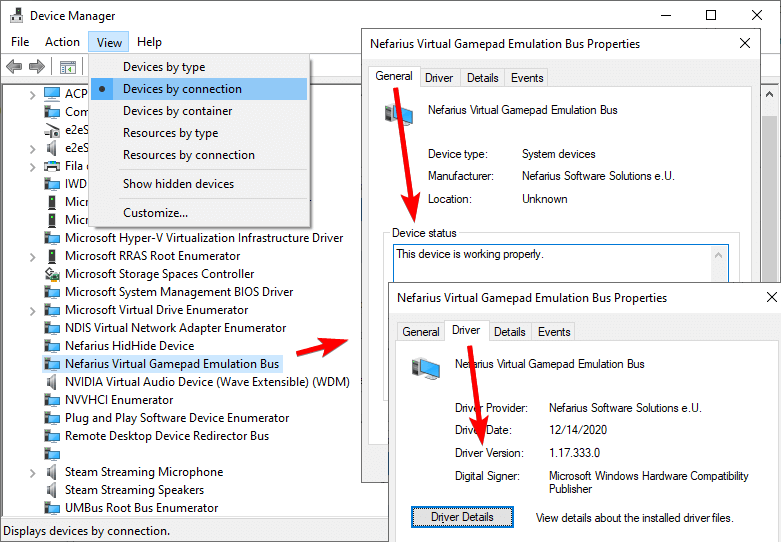
- After restarting, verify driver operation in Device Manager (press
Win + R, enterdevmgmt.msc). Expand System devices and confirm Virtual Gamepad Emulation Bus appears without yellow exclamation warnings. - If the driver shows an error icon (Code 37 or Code 52), see the Core Isolation instructions in the Windows 11 section below.
Fix 3 — Start Button Is Greyed Out and Disabled
Underlying Cause: This is intentional application design rather than a bug. XOutput will not allow you to click the green “Start” button on a virtual controller profile if no physical inputs have been mapped to it. Starting an unmapped virtual controller would spawn a blank hardware device with non-functional buttons.
Step-by-Step Resolution:
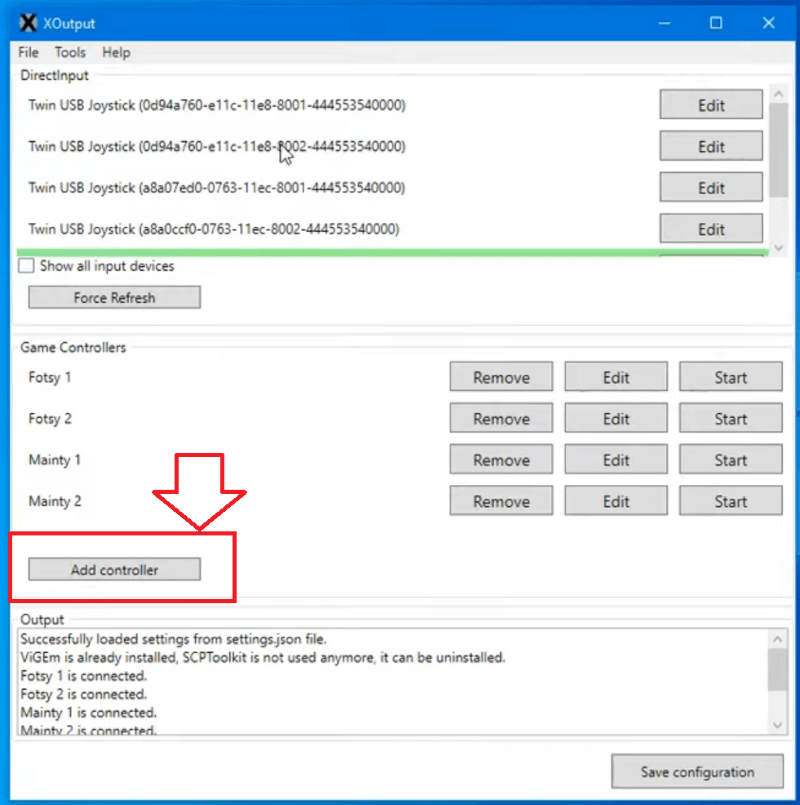
- In the XOutput main dashboard, click Add controller if you haven’t already. A new profile titled Controller 1 will appear.
- Click the Edit button next to Controller 1.
- Under the Axes tab, click Configure next to LStickX and LStickY, and move your physical left stick in the requested direction.
- Under the Buttons tab, assign at least the primary face buttons (A, B, X, Y) and Start.
- Close the mapping configuration window. Notice that the green Start button on the main dashboard is now fully active and clickable.
- Click Start. You will hear the Windows USB connection chime, confirming the virtual Xbox 360 controller is live. Complete mapping steps can be found in our comprehensive XOutput Setup Guide.
Fix 4 — Controller Not Detected Under Game Controllers Tab
Underlying Cause: XOutput does not communicate with raw hardware directly; it queries the Windows DirectInput layer. If your gamepad does not show up in XOutput’s device list, the physical connection has failed or Windows itself has not registered the USB device.
Step-by-Step Resolution:
- Press
Win + R, enterjoy.cpl, and press Enter. If your physical gamepad does not appear in this list, Windows has not established a USB connection. - Connect the controller directly to a rear motherboard USB 3.0/2.0 port. Avoid passive, unpowered USB hub splitters, which frequently suffer from insufficient 5V bus power.
- For Bluetooth devices, open Windows Settings → Bluetooth & devices, remove the controller, press the physical pairing button on the gamepad, and re-pair.
- If the controller appears in
joy.cplwith status “OK” but remains invisible inside XOutput, close XOutput, right-clickXOutput.exe, and select Run as administrator to grant elevated device enumeration permissions.
Fix 5 — Games Detect Two Controllers and Ghost Inputs
Underlying Cause: This is the notorious “Double Input” issue common in titles like EA Sports FC (FIFA), Rocket League, Elden Ring, and Forza Horizon. Because these game engines scan both legacy DirectInput and modern XInput APIs simultaneously, they detect your physical gamepad and XOutput’s virtual Xbox 360 controller at the same time. Every button press registers twice, skipping menu selections or assigning you to Player 2.
Step-by-Step Resolution:
- Download and install Nefarius HidHide using our step-by-step HidHide Double Input Setup Guide (or via GitHub).
- Reboot your PC when the HidHide installer finishes.
- Open HidHide Configuration Client from the Windows Start menu.
- In the Applications tab, click +, browse to your XOutput folder, and add
XOutput.exe. This whitelists XOutput so it can still read your physical controller. - In the Devices tab, check the box beside your physical controller (look for its hardware ID or vendor name), then check “Enable device hiding” at the bottom.
- Now, every PC game will only detect the clean virtual Xbox 360 gamepad, permanently resolving double input.
Fix 6 — Character Creeps or Camera Spins Uncontrollably
Underlying Cause: Analog stick drift caused by worn conductive potentiometer carbon tracks inside the analog thumbsticks. Because XOutput reads raw DirectInput values directly from the hardware, any resting sensor deviation (e.g., returning +0.08 instead of 0.00) is passed directly to the game engine as an active stick input.
Step-by-Step Resolution:
- In XOutput, click Edit next to your controller profile.
- Under the Axes tab, look at the live position indicator for Left and Right thumbsticks while taking your hands completely off the controller.
- Increase the Deadzone slider for the affected axis:
- 5% to 8% (Standard): Sufficient to resolve minor resting jitter without compromising micro-aim in shooters.
- 10% to 15% (Moderate wear): Required for older controllers with loose spring centering.
- If your character walks backward when pushing forward, check the Invert checkbox for the Y-Axis.
- For an in-depth hardware diagnosis, read our Stick Drift Calibration & Deadzone Guide. If you require more than 15% deadzone, see our Hall Effect Controller Guide for drift-proof magnetic hardware alternatives.
Fix 7 — Force Feedback and Rumble Vibration Not Working
Underlying Cause: XOutput supports force feedback, but it can only translate vibration commands if your physical controller’s Windows driver exposes DirectInput force feedback actuators. Many budget USB pads have internal vibration weights but use generic Windows drivers that lack motor control endpoints.
Step-by-Step Resolution:
- Open XOutput → Edit → click the Force Feedback tab.
- If the drop-down menu is blank or reports “No force feedback motors detected”, your controller’s current Windows driver does not support vibration over DirectInput. No configuration change within XOutput can override this hardware/driver limitation.
- If motors are detected, check the boxes for Left Motor (Heavy) and Right Motor (Light) and click Test to verify physical vibration.
- Ensure vibration is explicitly enabled in the target game’s internal settings menu. Detailed hardware matrices are available in our Force Feedback & Vibration Guide.
Fix 8 — Virtual Controller Appears in Windows but Games Ignore It
Underlying Cause: The virtual Xbox 360 controller is active and functioning in joy.cpl, but a specific game ignores all inputs. This is almost always caused by launcher hook conflicts or initialization sequence mismatches.
Step-by-Step Resolution:
- Strict Launch Sequence: Always launch XOutput and click Start before launching your game client. Many titles (e.g., Dark Souls, GTA V) only scan for XInput devices during their initial splash screen; connecting a controller mid-game is ignored.
- Disable Steam Input Conflicts: If playing on Steam, Steam Input may attempt to remap the virtual controller a second time. Right-click the game in your Steam Library → Properties → Controller → set “Override for [Game]” to Disable Steam Input.
- Close Competing Remappers: Running x360ce, DS4Windows, reWASD, or JoyToKey simultaneously with XOutput creates kernel-level hook deadlocks. Keep only one remapper active at a time.
- Run as Administrator: Games with elevated integrity levels (such as games protected by anti-cheat services) block inputs from applications with standard user privileges. Set
XOutput.exeto permanently run as administrator in its file properties.
Windows 11 24H2 Core Isolation and Driver Verification Issues
On modern Windows 11 installations (particularly builds 23H2 and 24H2), Microsoft has enabled Memory Integrity (Hypervisor-protected Code Integrity / HVCI) by default under Windows Security → Device security → Core isolation.
Because the ViGEmBus driver is a kernel-mode driver, legacy versions of the installer (or leftover ScpToolkit drivers) will be blocked from loading with a Windows notification stating: “A driver cannot load on this device” (Error Code 1275 or Code 52 in Device Manager).
Frequently Asked Questions About XOutput Troubleshooting
Where does XOutput store its diagnostic error log files?
XOutput writes logs directly to %AppData%\XOutput\logs\ (or in a logs folder beside the executable if running in portable mode). Open this text file to view exact stack traces and component failure exceptions.
Why does my controller stop responding when the game window loses focus?
When Alt-Tabbing or switching monitors, Windows power management may suspend idle USB or Bluetooth endpoints. In Device Manager, open your Bluetooth or USB root hub properties, navigate to Power Management, and uncheck “Allow the computer to turn off this device to save power”. Additionally, ensure XOutput is running with administrator privileges so it does not lose input focus to elevated windows.
Do I need to reinstall XOutput after a major Windows update?
XOutput itself does not need reinstallation. However, major Windows 11 feature updates (such as annual 24H2 builds) occasionally unbind third-party kernel driver filters. If the Start button becomes greyed out after an update, simply reinstall ViGEmBus 1.22.0 and restart your PC. Your controller button mappings will remain intact.
Can XOutput trigger anti-cheat bans in multiplayer games?
No. Unlike DLL-injection wrappers (such as legacy x360ce), XOutput operates via the ViGEmBus kernel driver to spawn a genuine virtual hardware device in the Windows operating system. It injects zero code into game memory, and anti-cheat engines (including Easy Anti-Cheat, BattlEye, and Ricochet) recognize the device as a standard Xbox 360 controller.