Bottom Line Up Front (BLUF)
ViGEmBus (Virtual Gamepad Emulation Bus) is the mandatory Windows kernel driver that allows XOutput to spawn authentic virtual Xbox 360 controllers. Without it, XOutput cannot translate inputs, resulting in a greyed-out “Start” button or ViGEmClient.dll errors. To install it correctly: 1) Download the certified ViGEmBus v1.22.0 unified installer; 2) Right-click and choose Run as administrator; 3) Restart your PC (essential for the Windows kernel to load the driver service); and 4) Confirm that Virtual Gamepad Emulation Bus appears under System devices in Device Manager. Once verified, follow our XOutput Setup Guide to configure your gamepad.
What Is ViGEmBus and Why Does XOutput Require It
To understand why ViGEmBus is necessary, you must understand how Windows handles game controllers. When you plug in a generic USB gamepad, retro arcade stick, or older PlayStation controller, Windows detects it through the legacy DirectInput API. However, virtually every PC game published on Steam, Xbox Game Pass, and EA App since 2006 exclusively queries the XInput API.
XOutput itself is a user-mode application interface: it reads your physical button presses and analog stick movements. However, a standard user-space app does not possess operating system privileges to spawn a new virtual USB hardware device in Windows.
This is where ViGEmBus, developed by Benjamin Höglinger-Stelzer (Nefarius), functions as the system-level bridge:
- It runs as a certified Kernel-Mode Driver Framework (KMDF) driver directly inside the Windows kernel.
- When XOutput clicks “Start”, it sends an instruction through
ViGEmClient.dllto the ViGEmBus driver. - ViGEmBus instantly tells the Windows Plug and Play (PnP) subsystem that a genuine Microsoft Xbox 360 Controller has been physically plugged in.
- Every game engine and anti-cheat client on your PC accepts the virtual device as authentic Microsoft hardware with zero emulation lag.
Which ViGEmBus Version Do You Need — 1.22.0 vs Legacy MSI Installers
The official ViGEmBus project was formally completed and archived by Nefarius in late 2023. Version 1.22.0 is the definitive “Golden Master” release. No future updates are planned or required, because the virtual bus protocol is completely mature and stable across Windows 10 and Windows 11.
ViGEmBusSetup_x64.msi or older v1.17 releases. Version 1.22.0 replaced all fragmented MSIs with a single unified setup bundle (ViGEmBus_1.22.0_x64_x86_arm64.exe) that automatically detects your architecture and installs the correct WHQL driver.
| Driver Version | Installer Package | Windows 11 24H2 Compatibility | Recommended Usage |
|---|---|---|---|
| v1.22.0 (Final) | Unified .exe (x64 / x86 / ARM64) |
Full WHQL signature; HVCI compliant | Yes — Recommended Standard |
| v1.21.442 & Earlier | Separate .msi installers |
May fail driver signature checks | No — Superseded & Outdated |
| Legacy ScpToolkit | Deprecated 2016 package | Causes Windows 11 BSOD & USB corruption | Never — Uninstall Immediately |
Pre-Installation Checklist and Removing Conflicting Drivers
To guarantee a clean installation and avoid ghost driver conflicts, perform these three quick checks before launching the installer:
- Remove Legacy ScpToolkit Installations: If you previously used ScpToolkit for PS3 controllers, you must uninstall it completely. ScpToolkit hijacks entire USB host controller drivers with generic libusb filters, preventing ViGEmBus from claiming gamepads. If uninstallation fails, use the official Nefarius Legacinator utility to scrub orphaned ScpToolkit registry entries.
- Uninstall Older ViGEmBus Builds: Open Windows Settings → Apps → Installed apps. Search for “ViGEm Bus Driver”. If an older build (v1.17, v1.21) is listed, click Uninstall, restart your PC, and then proceed with the clean 1.22.0 setup.
- Ensure Windows Administrator Privileges: Kernel-mode driver installation modifies the Windows system driver store (
System32\drivers). You must be logged into a Windows user account with administrator privileges.
Step-by-Step ViGEmBus 1.22.0 Installation Walkthrough
Follow this exact 4-step sequence to install and initialize the driver:
Step 1 — Download the Verified Installer Package
Obtain ViGEmBus_1.22.0_x64_x86_arm64.exe directly from our verified downloads hub or from the official Nefarius GitHub repository. Verify that the file size is approximately 12 MB to 15 MB.
Step 2 — Execute Setup as Administrator
Right-click the downloaded .exe and select Run as administrator. Accept the Windows User Account Control (UAC) prompt. Follow the on-screen wizard; keep all default installation directories intact.
Step 3 — Mandatory Computer Reboot
Do not launch XOutput immediately. The Windows kernel driver loader requires a system restart to mount the virtual bus service into memory. Restart your computer before opening any emulation software.
Step 4 — Initialize XOutput Virtual Profile
Launch XOutput.exe. Click Add controller, map your buttons, and click the green Start button. Windows will chime with the USB connection sound, confirming emulation is active.
Verifying Driver Operation in Windows Device Manager and Services
After your PC reboots, verify that the Windows kernel has successfully registered the driver using two built-in administrative tools:
Method 1 — Windows Device Manager (Visual Check)
- Press
Windows Key + Xand select Device Manager (or pressWin + R, typedevmgmt.msc, and hit Enter). - Scroll down and expand the System devices branch.
- Locate Virtual Gamepad Emulation Bus (or Nefarius Virtual Gamepad Emulation Bus).
- Confirm that the device icon appears clean with no yellow exclamation warning triangles. Double-click the entry; the device status must state: “This device is working properly.”
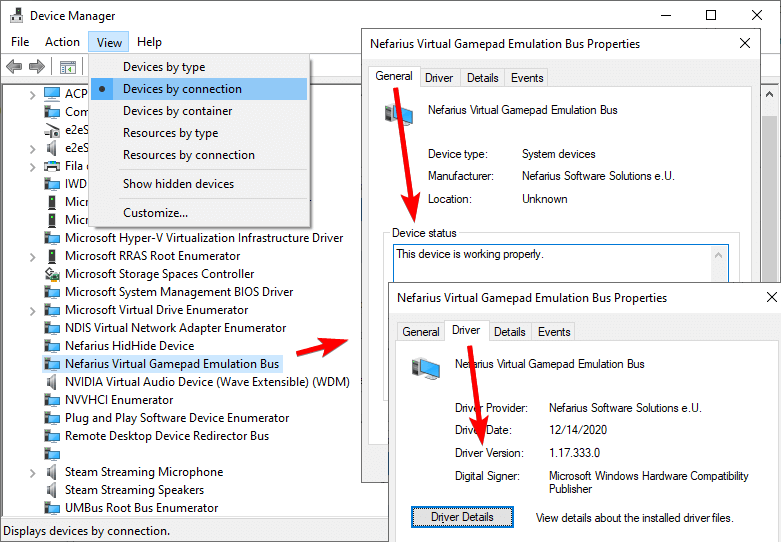
Method 2 — Windows Services and PowerShell Verification
For system administrators and advanced users, you can verify that the background driver service is running via Windows PowerShell:
Get-Service -Name "ViGEmBus"
PowerShell should return Status: Running and StartType: Automatic. If the service status reports Stopped, execute Start-Service ViGEmBus in an elevated PowerShell terminal.
Troubleshooting Driver Not Found and ViGEmClient Errors
If XOutput continues to report “Emulation driver not found” or throws a System.DllNotFoundException: ViGEmClient.dll error, resolve the issue using these verified diagnostic steps:
Issue 1 — “Start” Button Stays Greyed Out in XOutput
If Device Manager confirms ViGEmBus is running but XOutput’s Start button cannot be clicked, your issue is input mapping, not driver failure. XOutput will not activate an empty controller. Click Edit next to your controller, configure your left analog stick and A/B/X/Y buttons, close Edit, and Start will illuminate green. See our XOutput Not Working Guide for complete details.
Issue 2 — Installer Reports “A Newer Version Is Already Installed”
This occurs when remnants of a corrupted or incomplete installation linger in the Windows registry. Open Windows Settings → Apps, search for ViGEmBus, and uninstall it. Next, download the lightweight Nefarius Legacinator tool, click “Scan and Clean”, reboot, and rerun the 1.22.0 installer.
Issue 3 — Prebuilt PC OEM Filter Conflicts (HP Omen / Lenovo Legion)
Certain gaming prebuilt PCs come bundled with proprietary background utilities (such as HP Omen Gaming Hub or Lenovo Vantage) that install aggressive USB filter drivers. These OEM drivers occasionally block virtual PnP device registration. Updating your motherboard chipset drivers or temporarily disabling proprietary peripheral software in Task Manager resolves the deadlock.
Windows 11 24H2 Core Isolation and Memory Integrity Verification
On Windows 11 (builds 23H2 and 24H2), Microsoft strictly enforces Memory Integrity (Hypervisor-protected Code Integrity / HVCI) by default under Windows Security → Device security → Core isolation.
When HVCI is active, Windows prevents any third-party driver from loading unless it possesses a valid Microsoft WHQL digital signature. Outdated driver packages (such as ScpToolkit or unofficial ViGEmBus forks) will fail immediately with Device Manager Error Code 52 (“Windows cannot verify the digital signature for the drivers required for this device”) or Error Code 37.
Frequently Asked Questions About ViGEmBus Driver Setup
Is ViGEmBus safe to install on my primary PC?
Yes. ViGEmBus is a completely free, open-source project hosted on GitHub and developed by Nefarius (Benjamin Höglinger-Stelzer). It contains zero telemetry, trackers, or bundled software. Its kernel code is digitally signed and trusted across the entire PC gaming emulation community.
What is the functional difference between ViGEmBus and HidHide?
ViGEmBus and HidHide perform complementary, opposite tasks. ViGEmBus creates the new virtual Xbox 360 controller in Windows so games recognize your inputs. HidHide hides your original physical controller from games so that button presses do not register twice. For multiplayer games like EA FC or Rocket League, read our HidHide Double Input Setup Guide.
Do I need to reinstall ViGEmBus after a major Windows update?
In most cases, no. However, major Windows 11 feature upgrades (such as moving from 23H2 to 24H2) occasionally reset third-party PnP driver associations. If XOutput reports the driver missing following an OS update, running the 1.22.0 installer and selecting “Repair” immediately restores normal operation.
Can I install ViGEmBus without Windows Administrator privileges?
No. Because ViGEmBus operates at the Windows kernel level (KMDF), the operating system strictly forbids installation without administrator elevation. Standard user accounts cannot install kernel drivers under Windows security architecture.